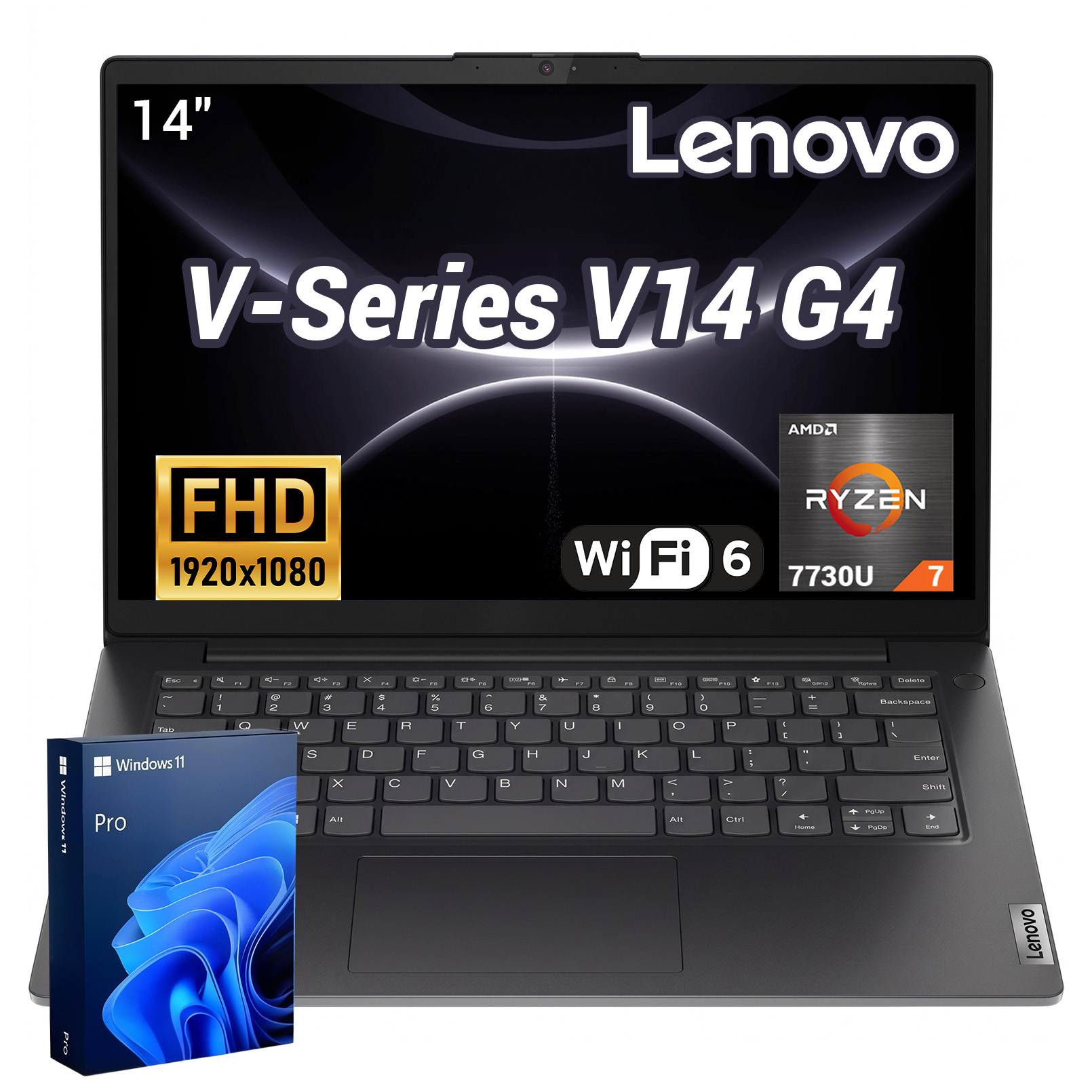
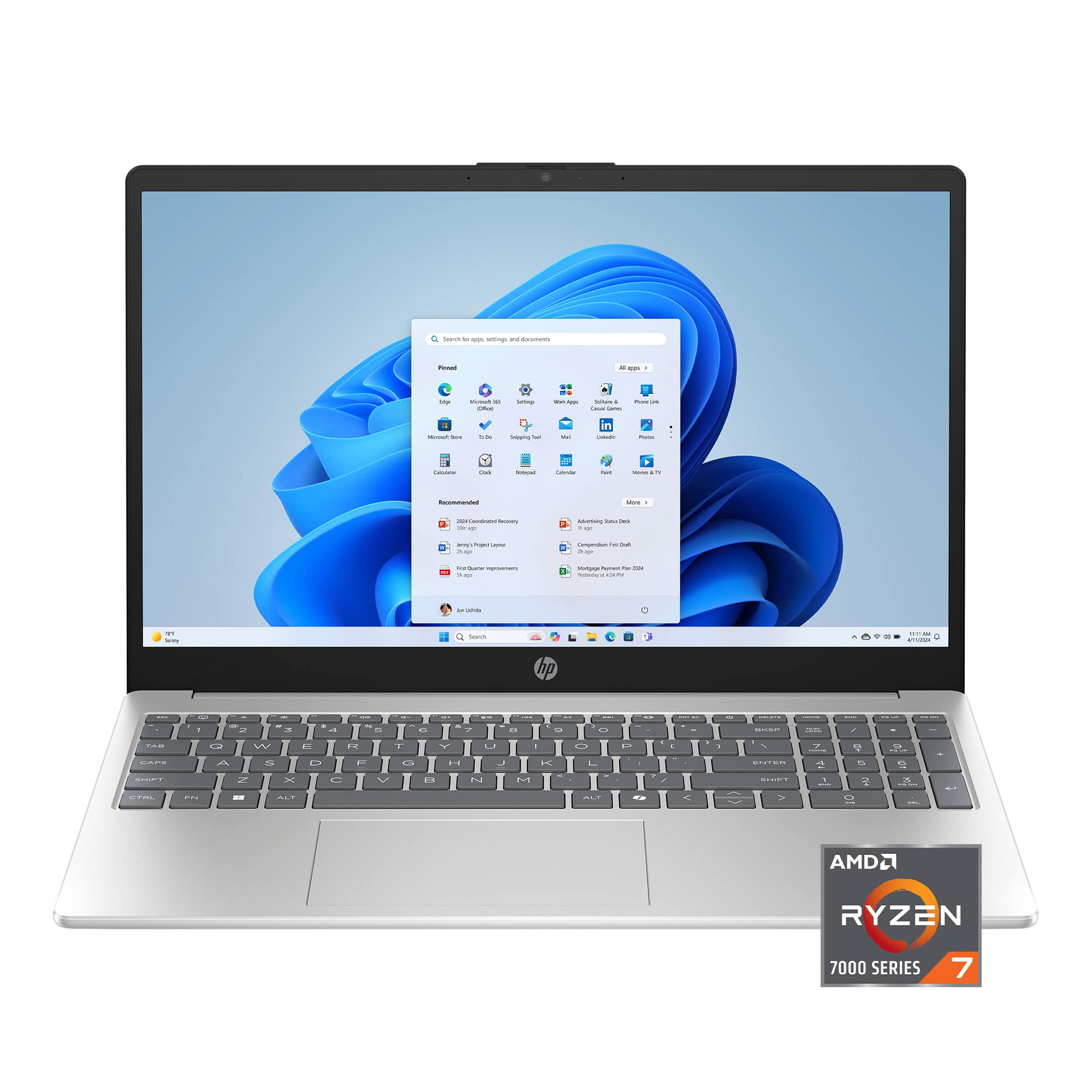
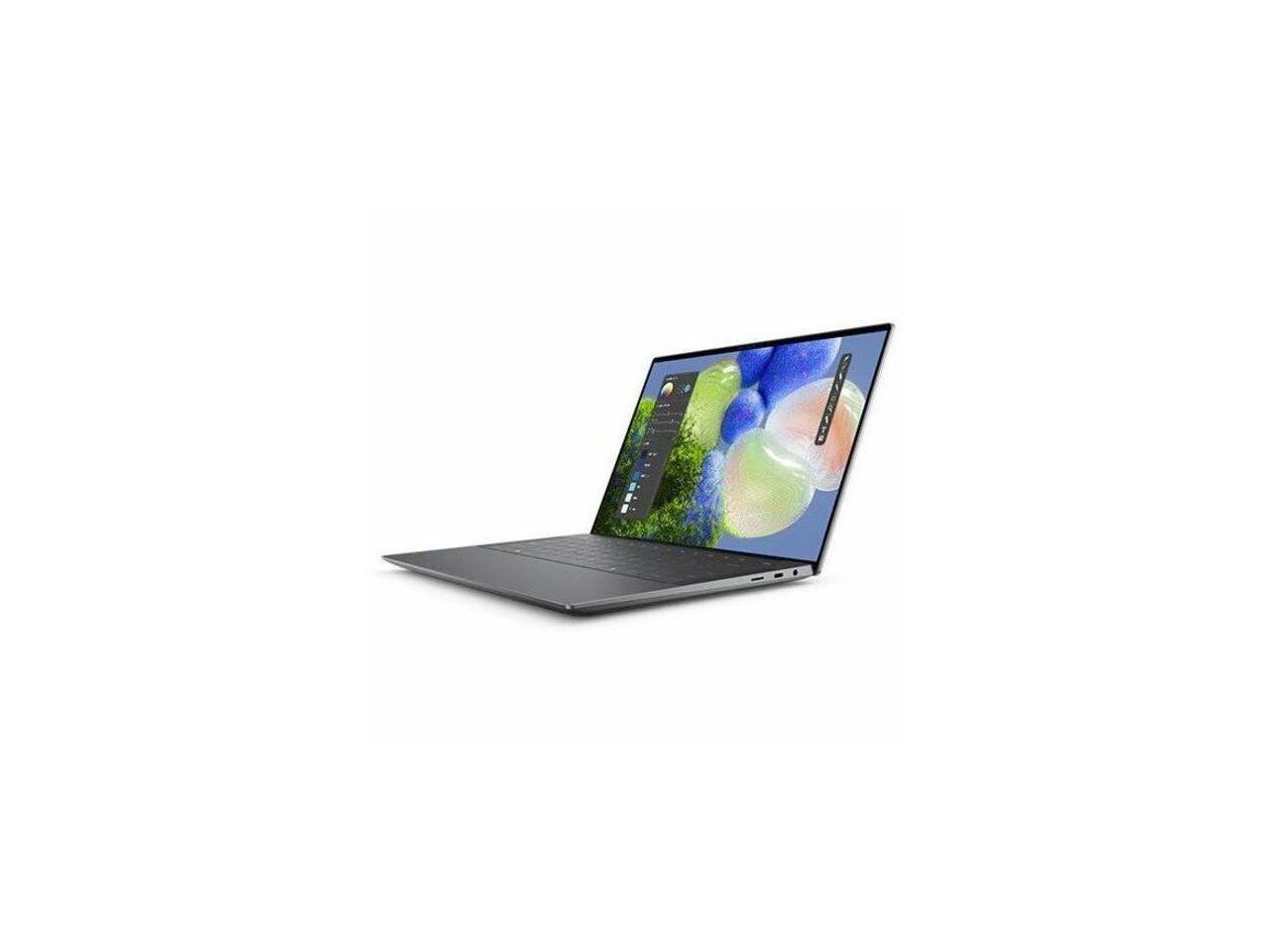
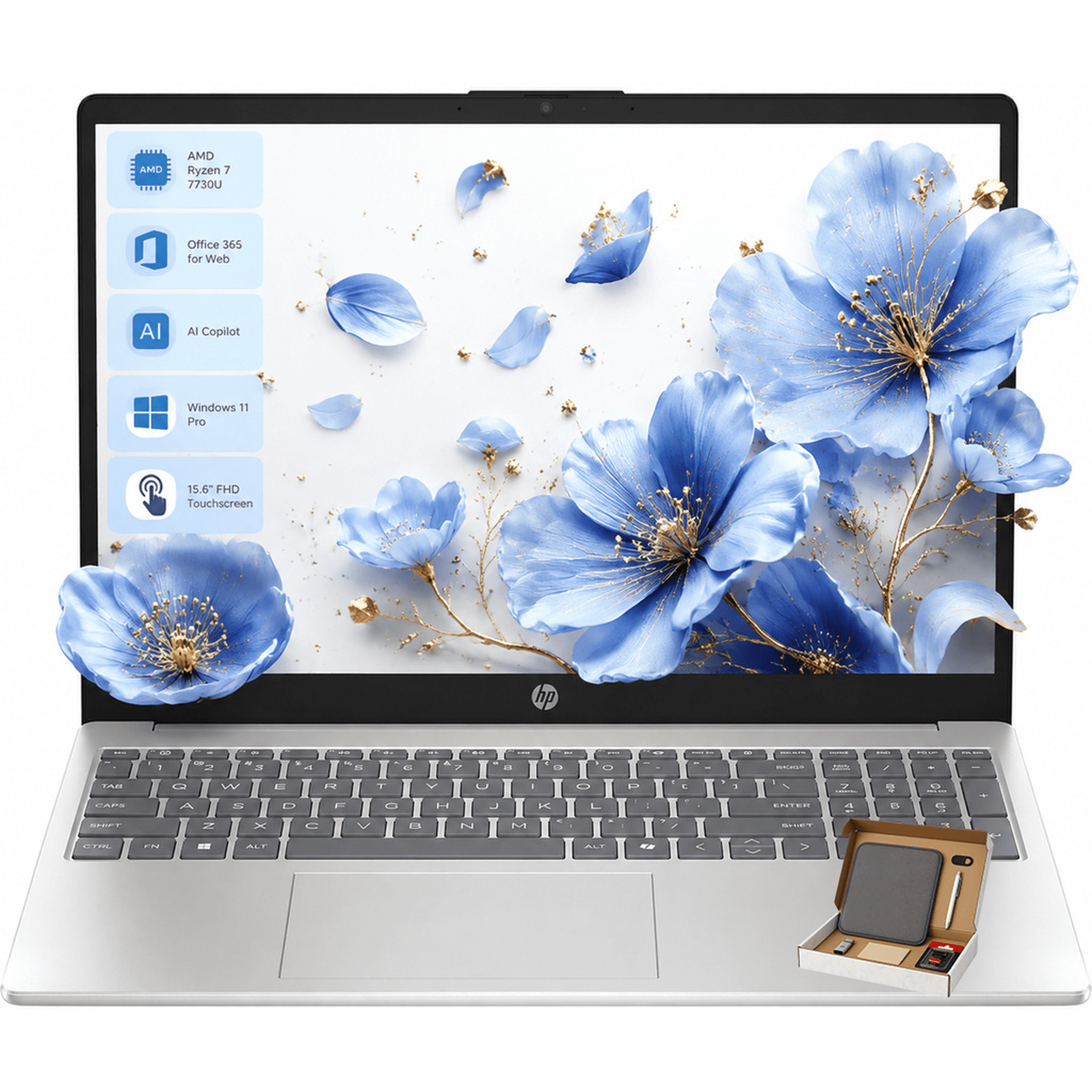
Dell Inspiron 15.6-inch Full HD Laptop AMD Ryzen 7 7730U 32 GB 512 GB SSD Black
Best price now
$657.48at AmazonChecked 1 h ago
Compared across 6 stores. Prices are checked against each store and labelled with when. Store links may earn us a commission. As an Amazon Associate, Deal.ai earns from qualifying purchases.